Tuesday, August 5, 2014

Wonder Journals

WonderopolisFirst, let me state, that this is not my original idea.  Once again, a great idea from Matt Gomez.. amazing and highly creative Kindergarten teacher. Read his blog post here.

Matt used the awesome Wonderopolis website daily with his Kindergartners to help them think and wonder. This site is fantastic for many reasons.  First, it asks a wondering question and then uses text, videos, pictures, etc. to answer the question.  It is super for little ones because the text has a read aloud feature. Really great informational text source.... and new content daily!  There are many great educational features to each day's wonder.  The site recently added a discussion area, so if you have a question about the wonder of the day, the Wonderopolis staff will answer the questions you have!  You and your class can suggest Wonders to be included on this website.  

After watching the Wonder of the Day video and listening to the text, he has his students create a KWL entry in their Wonder journal.  K~Know  W~Wonder  L~Learn

I love this idea!  

Here are a few printables to help you get started:


Monday, August 4, 2014

What do you get when you put Geography & Trivia together?


I think this would be a fun classroom center or "thinking minute" activity for older students.  Smarty Pins asks geography related questions that are answered by "dropping" a pin on a Google Map. It plays like a game, with points being awarded for correct answers.  Students would have fun with this learning game.

Questions are hard, so they may have to practice their Google Search strategies in a separate tab to find some answers.  Great multi skill thinking activity!


Higher Level Thinking Quick Activity ~ Guess the Wordle

Here is a super, awesome, quick, thinking activity that could be used during those morning minutes or during other transition times. Show one of these on the classroom SmartBoard or project this for kids to study and think.  


These activities are organized by level and also by theme.  As they go up in difficulty, thinking increases.  I think kids would like these challenges.  Give some a try!

Imagine, creating your own curricular Wordles to keep kids thinking about what they are learning!  The possibilities.......

Monday, July 28, 2014

Google Forms: Setup Email Notification for When Form Has Been Completed!

As we get closer to the start of the new school year, many of us may be creating and organizing Google Forms to gather beginning of the year student data. Or we may be refreshing old (or creating new) Google Forms.  Whatever your Google Forms purpose, I want to share a quick and handy setting with you that could make your life a few steps easier!  Yeah!

When someone fills out your Google Form, wouldn't it be great if you received a notification that new data was available?  Follow these quick steps.... and that is exactly what will occur!


In your Google Form Response Sheet (or the spreadsheet view of your Form data),

Then, 


For more information on how to create and use Google Forms in the Classroom, please check out Tech PDhttp://techpd.weebly.com/getting-started-with-forms.html.

Thursday, July 24, 2014

Using Twitter to Get Creative Writing Prompts

Want to get creative writing prompts for your students using Twitter?  Here is one way you can do it:


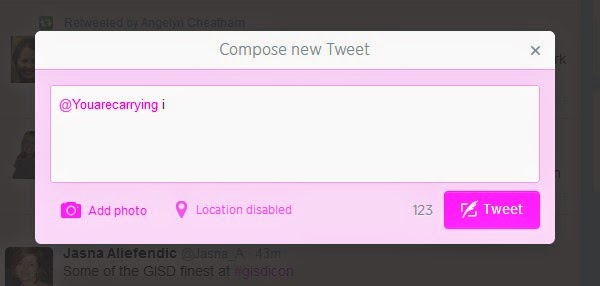
1.  Compose a tweet that looks like this:  @youarecarrying i or @youarecarrying inventory


2.  Then, in your Twitter timeline, click on the Expand link from your tweet.  


3.  Finally, this is the type of reply you will get.  Imagine the creative responses students will give you.  Once you have tweeted to @Youarecarrying, you can reply to the first tweet to get more writing prompts.


Saturday, July 12, 2014

I Want to Create a Classroom Twitter......

One of our favorite primary teachers to follow for inspiration is Kathy Cassidy.  One way she connects her classroom to the world is by using a classroom Twitter account.  Many of us are intrigued and want to get started.  


Here are a few articles to read to learn how to use this tool effectively in the classroom.


Why is Twitter a good choice for communicating with today's on the go parent (and what to do if a parent doesn't have a Twitter account)........ 
Read this to find out!


Twitter in the Elementary Classroom


What questions or comments do you have about using Twitter with students?

Friday, July 11, 2014

Communicate with Others from the 21st Century Classroom

21st Century classroom communication looks different than the traditional weekly newsletter and note home.  It can even be more than a frequent email to parents.  How can we as teachers embrace the power of technology to communicate with parents and other stakeholders...to provide more than just one way communication and also provide communication that is mobile and easy for others to access.  Here are some resources and tools that may help us, as teachers, be better at communicating in a 21st century style.


To learn more, read these articles:


To explore tools that can help:
Class Dojo ~ class management and parent communication tool
Remind 101 ~ send reminders to parents via text and/or email
Smore ~ online newsletters
Sign Up Genius ~ great tool to manage any classroom sign up tasks


Could you Stoodle?

Check out this new to me tool:  Stoodle

Stoodle is a online collaborative whiteboard that works on a desktop computer or an iPad. One thing that makes this tool unique is that you have the ability to type, write, draw, upload images, and as you collaboratively do this, you can communicate with voice chat.  

No login is required; you will just launch a classroom to get started.  Then, share that classroom's URl with your "friends" and work together to brainstorm, problem solve, research.  Stoodle gives you as many pages as you need to do your task.....

Watch this video to learn more:


Try out my sample classroom:  http://stoodle.ck12.org/class/53c01f0f5b6e5


Thursday, July 10, 2014

Classroom Backchannels Allow All Students to have a Voice and Venue to Share and Ask Questions

A backchannel is a, typically, online conversation, that occurs hand in hand or along side another activity.  It may occur as a conversation while students are watching a video in social studies.  It may be where students post their questions during a conversation or learning session in science.  It may be where students post their question or comments about a story they are reading.  It may be where the teacher poses a question and then watches the responses to see if the proper depth of learning has occurred.

In any case, it is a place where the extension of the discussion and questioning can occur. What is great about this is that a backchannel is not inhibited by time or speed.  If a student needs more time to think, they can take the time they need to process and think through their questions and then post them.  In a real time discussion, the speed is determined by the students and some students get left in the dust.  The other great benefit is that most backchannel tools create some sort of transcript file of the conversation.  To read more about the power of a backchannel in your classroom, read this article on eduTopia.  


Great tools to use for creating a classroom backchannel
Padlet 


Sunday, June 15, 2014

Learning with Video Content ~ A Few New Spins for Flips

If you wonder why you should use videos in your classroom and want to use them to transform learning, keep reading ....

Videos in the classroom have power,  BUT, we have also noticed that after watching the video content, students have a tendency to lack the comprehension of the information we had hoped for.  Here are some ideas to combat this......  These ideas and tools will, hopefully, help you students view videos more deeply and critically.  In reading, we talk about close reading. Here are some ideas to promote close watching in your classroom.

One great tool that will help students takes notes and reflect while watching a video is Videonotes.  The best and frankly, only way I would use this tool with students is by integrating it into their Google Drive accounts.  Why? Then, their notes documents will save in a folder in their Drive account.  The power of this tool is that students can put the video URL (Youtube videos seem to work as do other video sources... but not all sources work.  Teacher Tip:  Test the video before assigning to your students).  The video plays on the left and the student is able to take notes on the right.  You need to give this a try!  I think this tool could have great power in the classroom.  

If notetaking online is not a critical skill you want students to do, you might consider creating a Google Form that students interact with while watching or after watching the video.  Students will need to learn that watching a video for learning is not like watching their favorite show.  Rather, they will pause and start frequently to answer teacher posed questions or to take notes.  One teacher created a WSK (wisk) format for student to use when watching video content:  Watch, Summarize, and Question.  Read more about this here and/or watch the video.

Another great tool that may help when using video content is tubechop.  This tool is helpful when you find the perfect youtube video, but it is just too long. Shorter segments of videos are more successful than long videos. Tubechop allows you to chop the youtube video and save only the most relevant part.  

Looking for good video to use in the classroom.  A great source of standards aligned videos, which can be searched by topic, subject, grade level, or common core standard is Open Ed.  This would be my first stop when looking for video content that aligns which the standards I am teaching.


Of course, youtube is a powerful classroom tool.  Click here to learn more about ways to use YouTube effectively in the classroom.


How have you effectively used video in the classroom? What videos tools have used and want to recommend to others?

Thursday, June 12, 2014

Compass Works on the iPad

Download this app!  It is an iPad browser that allows a select group of educational  apps to work on the iPad. (It allows for Flash on the iPad!)  Compass is one of them.  It is free so download it today!  GREAT NEWS!!!!!


Other sites that work with Puffin Academy browser, from my quick look, are ABCYa, Scholastic Study Jams, and more.  Some are free and some are subscription.

Tuesday, June 10, 2014

Creating an iTunes Store, App Store, iBooks Store, and Mac App Store account without a credit card

Please follow these steps to setup your iTunes account with NO CREDIT CARD.....  You can download the Find your iphone app or any app of your choice. 
 
Click here for steps:  http://support.apple.com/kb/ht2534
 
Once there, please click on the words Creating an account on iPhone, iPad, and iPod touch and follow the steps.
 
If you have trouble, let me know......

Monday, June 9, 2014

Welcome to our new iPad Friends

PictureToday we welcomed all K-2 teachers into the iPad (no longer a Pilot) group.  Yeah!  and each of you took home an iPad to learn and play with for the summer.  This blog is our place to work and learn together how to best use these awesome tools in our classrooms.  Those of you new to it, please look back at our work from this spring.  

This will also be where I post new information and ideas for you to think about as we move forward.   You will receive an email when new information is published to this blog.  Happy iPadding!

Wednesday, May 21, 2014

Thinking & Blogging / Writing about Math ~ What questions do I ask?

Developing Mathematical Thinking with Effective Questions

It is important to get kids thinking about math and writing about math, but how can we do that?  By having kids write, speak, or blog about their math thinking.  

Here are some question prompts to get their thinking out...


To promote problem solving, ask…
  • What information do you have? What do you need to find out?
  • What strategies are you going to use?
  • Will you do it mentally? With pencil and paper? Using a number line?
  • What tools will you need? Will a calculator help?
  • What do you think the answer or result will be? 
To promote problem solving, ask…
  • How would you describe the problem in your own words?
  • What facts do you have?
  • What do you know that is not stated in the problem?
  • How did you tackle similar problems?
  • Could you try it with simpler numbers? Fewer numbers? Using a number line? What about putting things in order?
  • Would it help to create a diagram? Make a table? Draw a picture?
  • Can you guess and check?
  • If you compared your work with anyone else’s, what did they try? 
To make connections among ideas and applications, ask…
  • How does this relate to…?
  • What ideas that we have learned were useful in solving this problem?
  • What uses of mathematics did you find in the newspaper last night?
  • Can you give me an example of…?

To encourage reflection, ask…
  • How did you get your answer?
  • Does you answer seem reasonable? Why or why not?
  • Can you describe your method to us? Can you explain why it works?
  • What if you had started with… rather than…?
  • What if you could only use…?
  • What have you learned or found out today?
  • Did you use or learn any new words today? What did they mean? 
  • What are the key points or big ideas in this lesson?

To help students build confidence and rely on their own 
understanding, ask…
  • Why is that true? How did you reach that conclusion?
  • Does that make sense?
  • Can you make a model to show that? 

To help students learn to reason mathematically, ask…
  • Is that true for all cases? Explain.
  • Can you think of a counterexample?
  • How would you prove that?
  • What assumptions are you making?

To check student progress, ask…
  • Can you explain what you have done so far? What else is there to do?
  • Why did you decide to use this method?
  • Can you think of another method that might have worked?
  • Is there a more efficient strategy?
  • What do you notice when…?
  • Why did you decide to organize your results like that?
  • Do you think this would work with other numbers?
  • Have you thought of all the possibilities? How can you be sure?

To help students collectively make sense of mathematics, ask…
  • What do you think about what ____ said?
  • Do you agree? Why or why not?
  • Does anyone have the same answer but a different way to explain it?
  • Do you understand what _____ is saying?
  • Can you convince the rest of us that your answer makes sense?

To encourage conjecturing, ask…
  • What would happen if…? What if not?
  • Do you see a pattern? Can you explain the pattern?
  • Can you predict the next one? What about the last one?
  • What decision do you think he/she should make?


How can you get your students to show their thinking about Math?


Using Technology Tools to Make Math Stick

As students spend more time and efforts on standardized tests that are computer based, I see a need for two things to evolve in our classrooms. To read more about technology's power in math education, read this article.

First, students need exposure and experience using technology based tools to help them visualize, represent, and solve mathematical problems.

Second, they need to explore solving real world, multi-step math problems.  Click here to see a blog post that shares online resources to support this need. 

                      Web Based Math Tools


What other online tools or websites do you use to enhance student learning?