Tuesday, February 17, 2015

Create with the Telestory App


The Telestory app has been added to our Create tools on our primary iPads

TeleStory is an augmented reality video camera that gets kids off the couch to perform and record their own TV shows through creative play.


Ideas for Telestory in the Classroom:
Telestory from iPadeflteacher


How will you integrate the Telestory app in your classroom and your curriculum?

Read with the EPIC Digital Library App


 Read here to learn more !!

EPIC digital library app has been added during our January ipad sync to the ELA folder.

AND new news.....
Epic is now available on the web!


Follow these steps to get the best out of this app: To get a free educator subscription sign up here. https://www.getepic.com/educators/ or from the link within the app.
Then, on your classroom ipads, open the Epic app from the ELA folder and choose Have an Account? Sign in at the bottom of the screen. Enter your email address and password you used above when you created your epic educator account and ta da.

AND, if you want to .... I think, under the Teacher Profile, you are able to setup unique profiles for your students. This would give you data on how many books each student has read through the app. Not sure if it would be iPad specific or not, but cool!!!


How are you using this app in your classroom?


Create Digital Stories with the Toontastic App


Read This to learn more !!

The Toontastic app has been added to our Create tools on our primary iPads


Toontastic is a creative storytelling tool that empowers kids to draw, animate, narrate, and record their own cartoons – it's as easy as putting on a puppet show!


Links for more learning & ideas

Using Toontastic to Teach ELA


How can you promote writing, reading, speaking and listening with the Toontastic app?

Sunday, January 11, 2015

Tech Tools that Support Reading Instruction & Reading Online: Collaborative, At Level, Reading Discussions

This is Part 3 in a blog series about using Tech Tools that Support Reading Instruction and Reading Online.   In this post, I will refer to Part One, where we found leveled text and made it digital in Google Docs.   Once this text is digital, in Part Two,  I shared techniques for students to close read digital text.  Now, finally, in this part of the series, I will share techniques for students to have online collaborative conversations around these leveled texts.

Once the text is in Google Docs, you, the teacher, has the ability to share it with groups of students.  These could be students in a guided reading group.  BY sharing with right for Comments Only, you could add a teacher comment for a reading prompt.  Students can then use the comment feature to answer and discuss the prompt you have given.  If students need to have the ability to highlight text, I refer you to Part Two of this blog series, for techniques to do that.  


Share your thoughts and experiences with using Google Documents and digital text to support reading instruction with your students.  

Tech Tools that Support Reading Instruction & Reading Online: Close Reading Digital Text


In Part One of this blog series, I shared online resources to help you and your students find text that was at their reading level.  The next step is giving students the ability to close read and analyze that text online, as well.  Here are some strategies:

1.  Find a save a leveled passage from a website.  

  • If the text is a website or in html format, copy it from the webpage, open a new Google Doc and paste it in the Google Doc.

  • If the text is a PDF, save it on your desktop, then in Google Drive, click on the NEW button and choose File Upload.  Then, right click on the file and choose Open With.... Google Docs.  


  • With the passage open in Google Docs, click on the Format Menu and select Clear Formatting  This will remove the pdf format and allow you to edit and work with the text.  
  • Now your document is student ready.  Share it with them as you would share any document.  Make sure they have editing rights of their copy.


Highlighting & Annotating Text in Google Docs
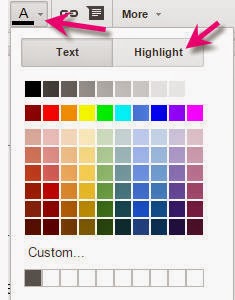
There are many different ways to highlight and annotate text within Google Docs.

Option 1


Students are able to use the highlight digital text using the highlighting tools within Google Docs.  


Option 2

Go to the Add ons menu within your Google Docs and add the Texthelp Study Skills add-on.  This add-on gives added functionality over the basic highlighting within Google Docs in that it also allows you to collect your highlights into a separate document for in-depth analysis and processing.  

Once you have added it, you will go to the add-ons menu within Google Docs and choose Texthelp Study Skills, Show Highlighting Tools.

Option 3
An additional option in the Google Apps store is the Read & Write tool bar.  It provides some very nice reading and writing support for Google documents and while not all are free to students, all are free to teachers.  Click here to sign up for this free to you tool!  Follow the Here's how it works directions!


When it is installed, the toolbar will show up in the Chrome address bar, at the end , like this.....  If the Read & Write icon does not show up, the website does not support this tool.


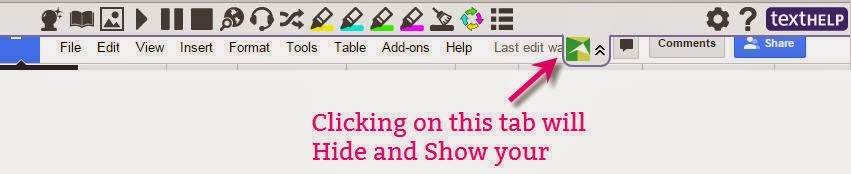
When in a Google Doc, the toolbar tab will appear at the top of your Google Docs window like this.....
If the Read & Write tab doesn't show up, this document does not support these tools.


In the teacher version, you will have not only highlighting tools, but also other tools that help students with reading online text.  Watch this video to learn more.  


To get this Chrome Browser extension, click here.....  Remember, while a full function version is free to teachers (click here to apply for free) it is free in a limited function to students and there is a cost for students to have access to the full functioning tool.


Click here for Part Three of this Blog Series: Online, Collaborative at Level Reading Discussions


Share how you have your students do a close read of a digital text?  Have you found tech tools that work well for this purpose?


Tech Tools that Support Reading Instruction & Reading Online: Finding Leveled Digital Text

Since reading is critical to learning and so much learning and information can be found online, we need to find ways to blend reading and online tools that enhance reading instruction.  I then think of Google Apps and the power of that. How can we wrap all of these together?

PART ONE

First, I am not a reading teacher, but I would guess that giving kids text that is at or within their reading level is important, and I know that all kids read at different levels. How can we find online text that is at the reading level of individual students?

In Part Two of this blog series, I will share Google tools that will allow students to open these passages in Google Docs so that they can have digital conversations and also do digital close reads of the passages or text.

Here are a few places to look:

Google Search by Reading Level ~  Levels are classified as Basic, Intermediate, and Advanced.


ReadWorks.org ~ a great teacher resource where you are able to find leveled passages, that can be searched by keyword, grade, lexile level and range, and skill.  There are literary and informational text passages.  

BadgerLink Research ~ many of the Badgerlink resources have the ability to sort by lexile level.  To search by lexile, you will need to get into the Advanced Search Options.  They look something like this:


Rewordify ~ free, online tool that is ready to use with no installation. Helps takes complicated text from websites and make it simpler for students.   Does not necessarily set it to a specific reading level, but does take difficult text and make it easier for students to read and understand. Watch this video about Rewordify with students.  Watch this video to show you how to create a library of reading for students online.

Newsela ~ this is a great site that has leveled news articles in multiple categories.  A great site that meets students informational text reading needs.

DOGONews ~ a text based current events site at appropriate reading levels for students in grades K-8.  Includes vocabulary, standards alignment, comprehension questions, and critical thinking challenges.

Click here for Part Two of this Blog Series:
 Close Reading Digital Text


Do you have any favorite sites that allow you or students to search
by reading level?
Share here!


Tuesday, November 25, 2014

Chromebooks & iPads in November

Here is some of what we have been doing with iPads and Chromebooks this past week.


Sunday, November 23, 2014

Ideas for Math Manipulatives Apps or Online Tools ~ Thanks K-2 friends!

At recent grade level meetings, we played and brainstormed how these awesome apps could be used in our classrooms.  Teachers explored the apps and then shared a story or task a student could use the app to solve the problem  Here are our ideas:


PS:  These are iPad apps and also web based tools.  Awesome!

Image result for geoboard appGeoboard App or Web Tool


Story or Task ideas:
Can you show me shapes with _____ sides?


Draw _______. How many sides? Corners? Etc.
Make a shape then make the symmetrical shape.


Make a shape with four vertices and four sides.


Make a polygon.

Story or Task Ideas:
Students could show "teen" numbers as 10 and _____ more. For example, 15 is 10 and 5 more.
They can be used to make sums of ten in different ways. A screen shot could be taken of the frames and then be imported into Educreations where the students can explain their understanding.
Help with number stories so they have a visual tool to see the answer as opposed to writing a number sentence.

Number Line App or Web Tool
Story or Task Ideas:
Addition and subtraction problems. You could use the number lines for skip counting
Kindergarten had 3 basketballs . Our gym teacher gave us 2 more basketballs. How many basketballs do we have in our room?


Give the students an addition or subtraction problem, such as 3 + 5. Have the students pull up a number line and type in the problem. Next have them take a screen shot and import it into Educreations. Open it up in Educreations and record how you would use the number line to solve the problem, speaking and showing your work.

Number Pieces App or Web Tool

Story or Task Ideas:
Writing a 2 or 3 digit number and build it with blocks. They could put it in a place value mat. They could write it in expanded form.

Bobby's pumpkin weighs 12 lbs. Gina's pumpkin weighs 23 lbs. how much do their pumpkins weigh all together?

You can use these tools for simple addition and expanded form

Story or Task Ideas:
Kids could use this to practice the concept of 10. What makes a 10 and how different combinations of ten look.

You can use it to make sums of ten or higher numbers. Use the shade to hide some and work with a partner to tell how many are missing.
This would be a great app. For my math centers as two forms of manipulatives for students. I can see myself using the geometry shapes for teaching fractions and tessellations. For accountability, I could have students perform screen shots and email them.

Pattern Shapes App or Web Tool

Story or Task Ideas:
Can you repeat the pattern?
Can you show me shapes with _____ sides?


Make a shape then make the symmetrical shape.


Do you have any other story or task ideas that could be used with these great tools? Share here....

Wednesday, November 19, 2014

How can I start blogging with my students?

Here are some suggestions for you to start blogging with your students:


  1. Use it to teach digital citizenship ~ blogging is a great venue to help students actually become digital citizens and navigate this world.  It is a great way to develop this knowledge and essential skill set.
  2. Post homework ~ it can be a common venue to post homework and a place that students can respond to with questions or comments.
  3. Recap of today's class work ~ students could share the responsibility of communication using the blog to share the daily happenings in your classroom.
  4. Weekly reflection ~ students could check-in via a blog and share what they are thinking about their learning.  What was new?  How does it connect with what they already knew?
  5. Continue the conversation ~ a classroom discussion could be continued, after the bell rings, to get to the lingering questions, go deeper in thinking, or extend learning.
  6. Creating a character/historical figure blog ~ instead of just reflecting and responding, a blog could be used to take on the persona of a different person and write in their "voice".
  7. Timeline or chronological log ~ Students can write posts and use facts, pictures, etc. to write about a specific event or a time or moment in history.
  8. Current Events ~ Students can use a blog to follow current events and analyze how different news sources cover the same story.
  9. Research Collaboratively ~ students can use a blog to research a topic or theme as a group
  10. Respond to literature ~ great as a written form of these types of discussions.
  11. Fanfiction ~ students can create new endings or plot twists to their favorite stories.
  12. Explain math problems ~ having students show their thinking for math is important and an important skill to develop.
  13. Keeping track of Science ~ students could use a blog to record hypothesis they develop and share their ideas and their findings.
  14. Create a science field guide  
  15. Language labs ~ foreign language students can practice with conversation and writing in their new language.
  16. Music Playlists ~ students can create playlists based on different musical properties and elements as well as analyze music.
  17. Art portfolio ~ students can share their art as well as reflect or analyze or reflect on specific art pieces or a particular artist.


I have summarized the following source in this blog post:  http://goo.gl/3jRCCd


What ideas for blogging do you have or have you tried?

Monday, November 17, 2014

Blogging to Support Common Core Writing Standards


If you are looking for inspiration to support Common Core writing standards, look no further than the New York Times.... These prompts would work well for writing or blog prompts.


To support the Common Core Writing standards which states, "Write opinion pieces on topics or texts, supporting a point of view with reasons and information", check out this article and PDF:

To support the Common Core Writing Standards which states, "Write narratives to develop real or imagined experiences or events using effective technique, descriptive details, and clear event sequences,"  check out this article and PDF:


Wednesday, November 12, 2014

A Starting Point For Blogging Prompts

I believe that blogging is an important 21st Century skill because of all the area it encompasses. Not only is it 21st Century Writing, but it is also Reading.  It is also much more.......

It is Communication ~ in a digital form.  

It is Collaboration ~ in that student can begin to dialogue and discuss using a platform that allows all students an equal voice, even those with a quiet voice.

It is Critical or Higher Level Thinking ~ prompts that students are given are crafted to stretch their thinking and allow them to express their opinions and viewpoints with supports and evidence.

It is Creative ~ in that students have thinking time to develop creative responses and this allows for more quality in their contributions.

It is Reflective ~ students are given prompts that allow them to reflect and respond on their own learning while making connections with new information and their own world.

Here are a few sources to get you thinking about what general, creative, thinking (not content specific) blog prompts (or posts) could look like.


Marzano Question Stems ~ being stems, these could be aligned well to your specific curriculum
The Daily Post:  Daily Prompts
The Daily Post:  365 Days of Prompts ~ these two sources have a great variety of creative, thinking prompts.  Again, not content specific , but would inspire great thinking

My Pinterest Picture Writing Prompts
Visual Writing Prompts ~ I love the visuals that help inspire student' thinking and creativity

Video Writing Prompts ~ very cool and lots of fun

Writing Forward Writing Prompts ~ again different categories of thinking prompts


What successes have you had with blogging with students?


Tuesday, November 11, 2014

Math with Thinking Problems

If I had to teach Math, and wanted my kids to think big AND deep AND apply math to real world problems...... here are a few great online resources I would utilize.  Plus, all of these truly simulate the type of math problems students will see in the Smarter Balance assessment.  I would use a class blog to have student share their thinking and to be the launch pad for independent thinking, but then also classroom discussion.


Illustrative Math ~ Search by Grade level and then find activity by
standard

Math Teaching Resources ~ use the links on the left to narrow your focus by grade level or math area

CK12 Common Core Math Standards Browser ~   Middle School & High School Math Problems to stretch student's math thinking

Inside Mathematics Problem of the Month ~  a great collection of math problems per grade level and math topic.

Inside Mathematics Performance Tasks ~ per grade level 


Of course, there are math thinking stems as well that could also be used to get your student's thinking about math in a deeper way.


Monday, November 3, 2014

Check out the Wisconsin Media Labs ~ great free content!

If you haven't checked out the Wisconsin Media lab, you may be missing out on some excellent resources!  And, they are free!

Give it a look!  WIMediaLab.org

And, if you are a fan of Bill Nye the Science Guy, go to the Browse A-Z tab at the top of the page.  Every one of his episode is now included here in the media lab.